
Lucky Vibe Android Access
 Available in US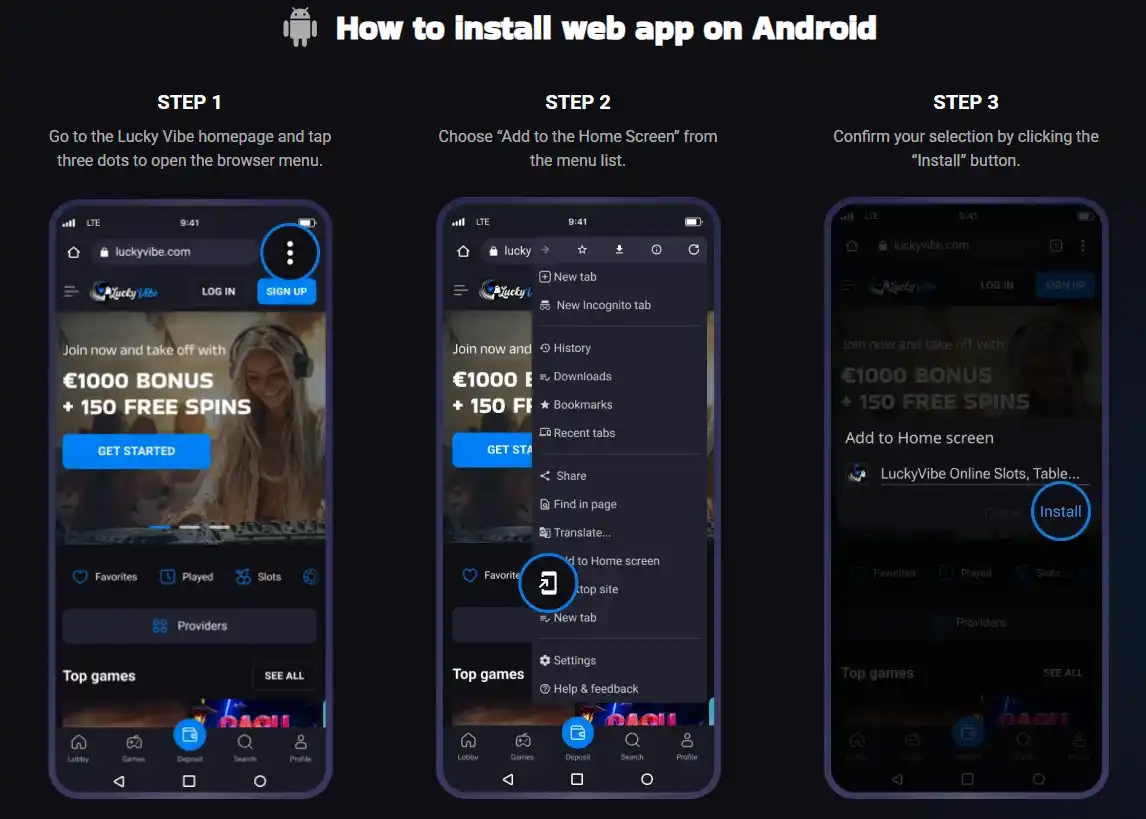
Table of content
Lucky Vibe’s official Australian install page tells Android users to add the casino website to the home screen as a web app. Open the Lucky Vibe homepage in your browser, tap the three-dot browser menu, choose “Add to Home Screen”, then confirm with “Install”. The published process starts from luckyvibe.com and does not require an APK file.
That distinction matters if you searched for “Lucky Vibe Android app”, “Lucky Vibe APK” or “Lucky Vibe Android download”. The current operator evidence supports a browser-installed web app or PWA-style shortcut. It does not give us a verified basis to recommend a separate Google Play package or a third-party APK, so this guide keeps the Android route tied to the official site.
How to add Lucky Vibe on Android
- Open the Lucky Vibe homepage in your Android browser.
- Tap the three-dot browser menu.
- Select “Add to Home Screen” from the menu.
- Confirm by tapping “Install”.
These are the steps shown on the official AU install page. The result is an app-like icon on the Android home screen that opens the Lucky Vibe web service. If you prefer not to add the icon, you can continue using the normal mobile website in the browser.
For the broader platform comparison, including the iPhone route and what “web app” means in this context, see the Lucky Vibe mobile access.
Do you need a Lucky Vibe APK?
No APK is needed for the verified Android installation flow. Lucky Vibe’s own instructions use the browser’s Add to Home Screen function instead of telling users to download an Android package. That gives a simple safety rule: if an unrelated site offers a Lucky Vibe APK, do not treat the file as official merely because the brand name or logo appears on the download page.
An APK can install software outside the normal browser route, which means the source matters. For Lucky Vibe, the operator-published route is more straightforward: begin on the official domain and let the browser create the home-screen entry. This avoids substituting an unverified installer for the web app the operator actually documents.
Games, login and payments stay on the website
Because the Android installation adds luckyvibe.com itself to the home screen, it is best understood as another way to open the same web service rather than a separate casino account. The AU site includes pokies and other casino categories, so the home-screen route is an access shortcut to the same site navigation rather than a distinct Android-only game catalogue.
The public payment information also lists Visa and Mastercard among supported methods, with exact cashier availability depending on the account or jurisdiction. If banking is the main reason you are testing mobile access, check the cashier after signing in and use the registration and account setup guide for account preparation rather than relying on an APK description.
Android safety checklist
- Start from the official Lucky Vibe domain, not an APK mirror.
- Use the browser’s own three-dot menu and Add to Home Screen command.
- Do not grant installation permissions to an unrelated package just to create a shortcut.
- Check the web address before entering account or payment information.
- Keep Android and the browser updated and use a device screen lock.
- If a shortcut opens an unexpected domain, remove it and recreate it from the official website.
The practical advantage of the web-app route is that there is no separate package to hunt down or update manually. The browser still controls the website connection, while the home-screen icon reduces the number of taps needed to return to the site.
If you change browsers or reset the phone, recreate the shortcut from the official site instead of looking for a replacement APK. That keeps the installation path easy to audit: the source is the website you can see in the address bar, the browser performs the home-screen action, and there is no separate installer whose publisher you need to identify.
It is also sensible to test the shortcut before relying on it. Open it once, confirm that it resolves to the expected Lucky Vibe domain, then close and reopen it. A home-screen icon is convenient, but the domain behind it is the important security check.
Android versus iPhone
Both official flows install a web app, but the controls differ. Android uses the browser menu, Add to Home Screen and Install. The iPhone flow starts in Safari and uses Share, Add to Home Screen and Add. If you are switching devices, use the Lucky Vibe on iPhone guide instead of trying to reuse Android APK instructions on iOS.
The difference is mostly the browser interface. The important common point is that both verified routes begin on the Lucky Vibe website and create a home-screen entry from the browser.
When the home-screen web app makes sense
If you return to the site regularly, the icon is a convenient shortcut. If you only visit occasionally, a browser bookmark is enough. Neither choice changes the need to verify the official domain before logging in, and neither creates a separate Android account.
For the wider product, payment and regulatory context around the brand in Australia, return to the full Lucky Vibe Australia review.
Treat the browser route as the verified Android installation
The official sequence begins on luckyvibe.com and stays inside the browser: open the site, use the three-dot menu, choose Add to Home Screen and confirm with Install. That sequence is the evidence-backed Android route for this guide. It creates a home-screen entry to the web service and does not require a separate APK package.
This distinction makes it easier to evaluate search results that use words such as “app”, “download” or “APK”. Those labels do not establish that a file is supplied by Lucky Vibe. When the operator’s own instructions use the browser, the safest comparison is between the visible official domain and the browser-created shortcut, not between unrelated installer pages.
What to check after adding the home-screen icon
Open the new icon once and confirm that it leads back to the expected Lucky Vibe domain. Then close it and open it again so you know the shortcut behaves as expected before entering account or cashier information. The icon itself is only a convenience layer; the domain it opens is the important part of the check.
If you later change browsers, reset the phone or remove the shortcut, recreate it from the official website using the same browser process. There is no need to search for a replacement APK simply because the home-screen entry disappeared. Returning to the documented route keeps the installation source clear.
The shortcut does not create a separate Android casino
Lucky Vibe’s Android instructions add the website itself to the home screen, so games, account access and cashier pages remain part of the same web service. The AU site already contains pokies and other casino categories, and the public payments material lists Visa and Mastercard among supported methods. The shortcut changes how quickly you open the site; it does not establish a separate Android-only catalogue, account or payment system.
That is useful when troubleshooting access. If the website opens normally in the browser but the shortcut does not, recreate the shortcut from the official domain rather than treating the issue as evidence that a separate app package is required. If a particular game or payment option matters, check that feature in the signed-in site because availability can depend on the account or jurisdiction.
Keep APK claims separate from the verified PWA evidence
The current source set does not verify an official Lucky Vibe APK or Google Play application. That means a third-party file should not be promoted as official simply because it uses the brand name. This page also does not provide sideloading instructions, because they are unnecessary for the operator-published Android flow.
For an Australian user, the practical path remains straightforward: use the mobile site directly or add it to the home screen from the browser. Both choices stay tied to the same official web service and avoid turning an unverified download claim into part of the installation process.
Primary source check
The Android installation flow on this page was rechecked on the official Lucky Vibe AU install page on 9 September 2026. The operator page explicitly calls the Android process a web-app installation and shows the browser menu, Add to Home Screen and Install sequence.
Lucky Vibe Android FAQ
How do I install Lucky Vibe on Android?
Open the official site, tap the browser’s three-dot menu, choose Add to Home Screen, then confirm with Install.
Do I need a Lucky Vibe APK?
No APK is required for the verified official flow. The operator documents a browser-installed web app.
Is a third-party Lucky Vibe APK official?
Do not assume so. The verified operator instructions begin on luckyvibe.com and do not rely on a third-party APK mirror.
Can I just use Lucky Vibe in my Android browser?
Yes. Adding the site to the home screen is a convenience, not a requirement for browser access.